
Using Charts
The ui-react-dom-charts module provides SVG chart components for rendering data from a Store Table or from a Queries ResultTable.
These components are intended for browser-based React apps. They use the same Provider context patterns as the ui-react module and the ui-react-dom module, so you can usually bind a chart to data with just a few props.
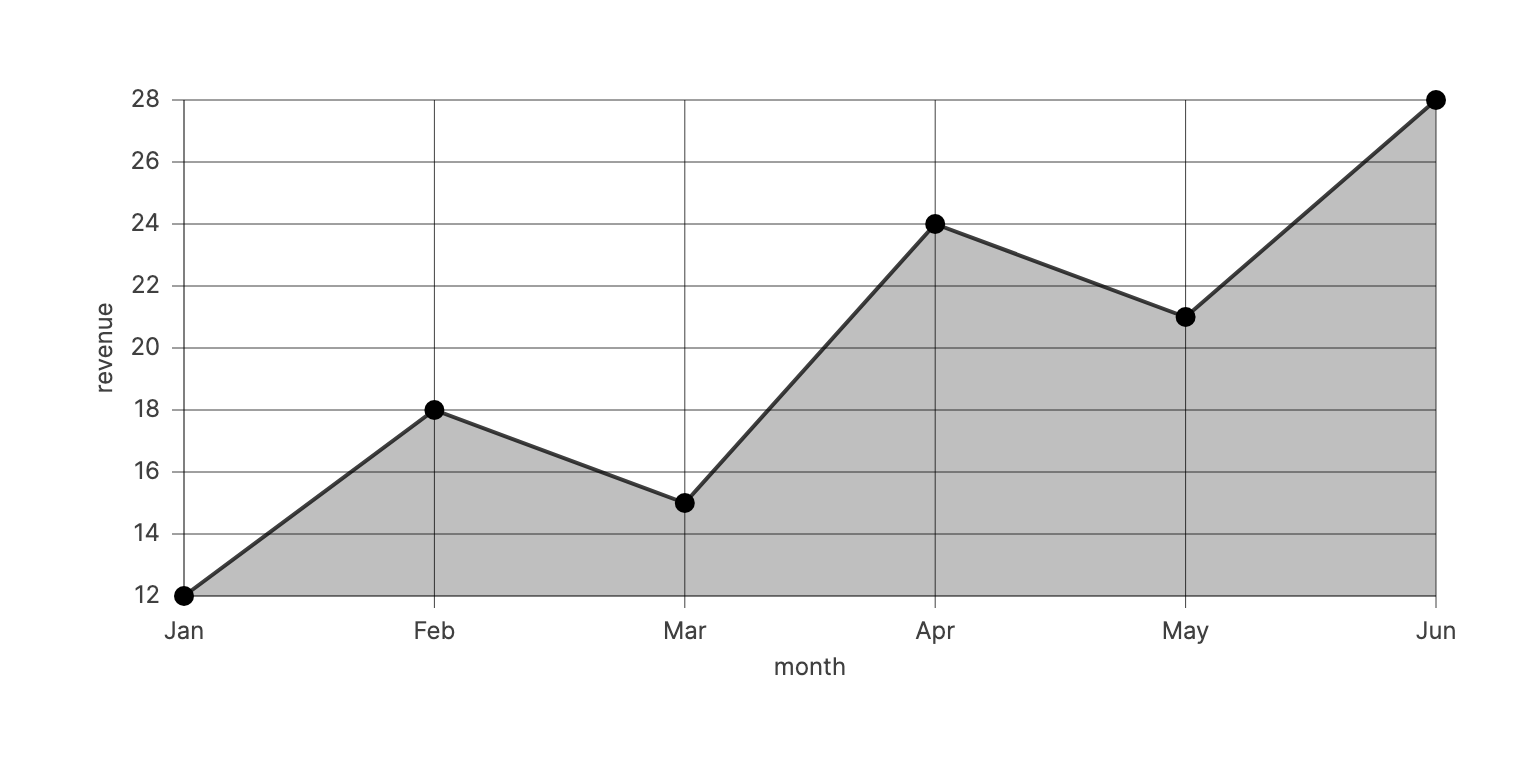
For example, a small sales Table can be rendered as a line chart:
Rendering A Line Chart
The LineChart component renders a series from Cells in a Table. The x Cell can contain numbers, strings, or booleans, and the y Cell should contain numbers:
import React from 'react';
import {createRoot} from 'react-dom/client';
import {createQueries, createStore} from 'tinybase';
import {Provider} from 'tinybase/ui-react';
import {
  BarChart,
  CartesianChart,
  LineChart,
  LineSeries,
  XAxis,
  YAxis,
} from 'tinybase/ui-react-dom-charts';

const salesStore = createStore().setTable('sales', {
  jan: {month: 'Jan', order: 1, revenue: 12},
  feb: {month: 'Feb', order: 2, revenue: 18},
  mar: {month: 'Mar', order: 3, revenue: 15},
  apr: {month: 'Apr', order: 4, revenue: 24},
  may: {month: 'May', order: 5, revenue: 21},
  jun: {month: 'Jun', order: 6, revenue: 28},
});

const LineChartApp = () => (
  <Provider store={salesStore}>
    <LineChart
      className="chart"
      tableId="sales"
      xCellId="month"
      yCellId="revenue"
      sortCellId="order"
    />
  </Provider>
);

const lineChartApp = document.createElement('div');
createRoot(lineChartApp).render(<LineChartApp />);
console.log(lineChartApp.firstChild?.nodeName.toLowerCase());
// -> 'svg'
console.log(lineChartApp.firstChild?.getAttribute('class'));
// -> 'chart'
The sortCellId prop is often useful when the x values are labels. Here the chart displays the month names on the x axis, but the rows are ordered by the numeric order Cell.
Rendering A Bar Chart From A ResultTable
The BarChart component uses the same data binding props, and can also read from a Queries ResultTable. Provide the Queries object through context, then use queryId instead of tableId:
const salesQueries = createQueries(salesStore).setQueryDefinition(
  'salesByMonth',
  'sales',
  ({select}) => {
    select('month');
    select('order');
    select('revenue');
  },
);

const BarChartApp = () => (
  <Provider queries={salesQueries}>
    <BarChart
      className="chart"
      queryId="salesByMonth"
      xCellId="month"
      yCellId="revenue"
      sortCellId="order"
      limit={3}
    />
  </Provider>
);

const barChartApp = document.createElement('div');
createRoot(barChartApp).render(<BarChartApp />);
console.log(barChartApp.firstChild?.nodeName.toLowerCase());
// -> 'svg'
The offset, limit, and descending props let you chart a sorted subset of rows without creating another Table.
Configuring Axes
The CartesianChart component can contain an XAxis component and a YAxis component. These are configuration children, like series components, and let you set axis-specific props without crowding the chart itself:
const AxisChartApp = () => (
  <Provider store={salesStore}>
    <CartesianChart tableId="sales">
      <XAxis
        min={0}
        max={7}
        tickCount={4}
        tickFormatter={(tick) => `Month ${tick}`}
        title="Month number"
      />
      <YAxis min={0} tickFormatter={(tick) => `$${tick}k`} title="Revenue" />
      <LineSeries xCellId="order" yCellId="revenue" />
    </CartesianChart>
  </Provider>
);

const axisChartApp = document.createElement('div');
createRoot(axisChartApp).render(<AxisChartApp />);
console.log(axisChartApp.firstChild?.nodeName.toLowerCase());
// -> 'svg'
If you omit these components, the chart infers axis titles, bounds, and ticks from the series.
Using Time X Axes
Line charts infer a time x axis when all x values are ISO date strings:
const visitsStore = createStore().setTable('visits', {
  d1: {day: '2026-01-01', visits: 42},
  d2: {day: '2026-01-02', visits: 57},
  d3: {day: '2026-01-05', visits: 64},
  d4: {day: '2026-01-08', visits: 81},
});

const IsoTimeChartApp = () => (
  <Provider store={visitsStore}>
    <LineChart tableId="visits" xCellId="day" yCellId="visits" />
  </Provider>
);

const isoTimeChartApp = document.createElement('div');
createRoot(isoTimeChartApp).render(<IsoTimeChartApp />);
console.log(isoTimeChartApp.firstChild?.nodeName.toLowerCase());
// -> 'svg'
Numeric timestamps are not auto-detected as dates, since they may also be ordinary measurements. Use an XAxis component with scale="time" and, for Unix second timestamps, timestampUnit="second":
const ordersStore = createStore().setTable('orders', {
  d1: {time: 1767225600, orders: 12},
  d2: {time: 1767312000, orders: 18},
  d3: {time: 1767571200, orders: 21},
  d4: {time: 1767830400, orders: 25},
});

const UnixTimeChartApp = () => (
  <Provider store={ordersStore}>
    <LineChart tableId="orders" xCellId="time" yCellId="orders">
      <XAxis scale="time" timestampUnit="second" title="Order date" />
    </LineChart>
  </Provider>
);

const unixTimeChartApp = document.createElement('div');
createRoot(unixTimeChartApp).render(<UnixTimeChartApp />);
console.log(unixTimeChartApp.firstChild?.nodeName.toLowerCase());
// -> 'svg'
Styling With CSS
Chart components emit a single SVG element. Give the SVG a size with CSS, then style its child elements using regular SVG selectors:
.chart {
  display: block;
  font-size: 12px;
  height: 20rem;
  width: 100%;
}

.chart .grid {
  color: #d8e1eb;
  stroke-dasharray: 4 6;
}

.chart .plot .line {
  stroke: #0284c7;
  stroke-linecap: round;
  stroke-linejoin: round;
  stroke-width: 3;
}

.chart .plot .area {
  fill: #0ea5e9;
  fill-opacity: 0.12;
}

.chart .points {
  fill: white;
  stroke: #0284c7;
  stroke-width: 2;
}
The default chart styles use currentColor, so setting color on the chart is often enough for simple cases. More specific selectors let you tune grid lines, axes, labels, bars, lines, points, filled areas, and tooltips.
CSS Class Reference
Chart components render a single SVG element with the className you provide. Inside it, the following class names are used:
| Selector | Description |
|---|---|
.grid | Group containing all plot-area grid lines. |
.grid .x | Vertical grid lines for x-axis ticks or label positions. |
.grid .y | Horizontal grid lines for y-axis ticks. |
.axes | Group containing x and y axes, tick labels, and titles. |
.axes .x | Group containing the x axis. |
.axes .y | Group containing the y axis. |
.axes .line | Axis line paths. |
.axes .ticks | Groups containing tick label text elements. |
.axes .title | Axis title text elements, from xCellId and yCellId. |
.plot | Group containing the charted data marks. |
.plot .area | Filled area under a line series. |
.plot .line | Line series path. |
.plot .points | Group containing line series point circles. |
.plot .bar | Bar series rectangle. |
.tooltip-lines | Crosshair lines shown for the hovered data point. |
.tooltip | Group containing the tooltip rectangle and text. |
Since some class names are intentionally reused in different parts of the SVG, prefer scoped selectors such as .chart .plot .line or .chart .axes .title.
For complete examples, see the Chart Components (React) demos:
| Demo | Purpose | |
|---|---|---|
LineChart component | Renders x and y Cells from a Table. | demo |
Styled LineChart component | Styles the chart SVG with regular CSS rules. | demo |
| Composing Charts | Combines multiple series in one chart. | demo |
| Sorting And Types | Shows sorting and x value types. | demo |
| Axis Overrides | Sets axis bounds, ticks, and labels. | demo |
| Time Axes | Shows ISO dates and Unix timestamps. | demo |
To start from a complete editable charting app, run the CLI and choose the Charting app template: npm create tinybase@latest.
Summary
The ui-react-dom-charts module lets you use Store and Queries data directly in React charts, while CSS controls presentation.
For the Solid equivalents of the React guides, proceed to the Building UIs With Solid guides.